Directories
Church Windows can create custom church directories in a variety of formats, conveniently pulling from the current data maintained in Membership records. This ensures directories are always up-to-date and easy to produce.
Setup and Preparation
To ensure a smooth directory creation process, it's a good idea to review your Membership records to ensure that the necessary information is current.
Include on Directory
This field, located in the Individual record, allows individuals to be included in reports that have a Directory format. It's still possible to exclude individuals from the directory with this checked by specifying criteria in Step 1, but without this setting checked, individuals will not be included even if they meet other criteria.
Directory/Report Order
Assign a Primary (1) to each household or family record.
Spouses should be designated as: Secondary (2): If sharing the same last name. Secondary/Primary Separately (4): If using different last names (both last names will be included in the directory).
Children (3): All children within the family unit.
Individual Separately (5): For roommates or other adults sharing an address but requiring their own listing.
Unlisted Contact Information
Mark sensitive contact details, such as phone numbers and email addresses, as Unlisted in the Membership record if they should not appear in a public directory.
For internal directories, unlisted information can be included but should be marked with an asterisk (*) for clarity.
Reviewing Information in the Find Grid
To facilitate review, consider using the Find Grid to review all of your congregation. In the grid, click on Columns and Sorting to select the fields to review, including the Include on Directory checkbox. Use filter, sort and grouping to ensure you have Include on Directory checked or to add or update information in records.

Directory Criteria
-
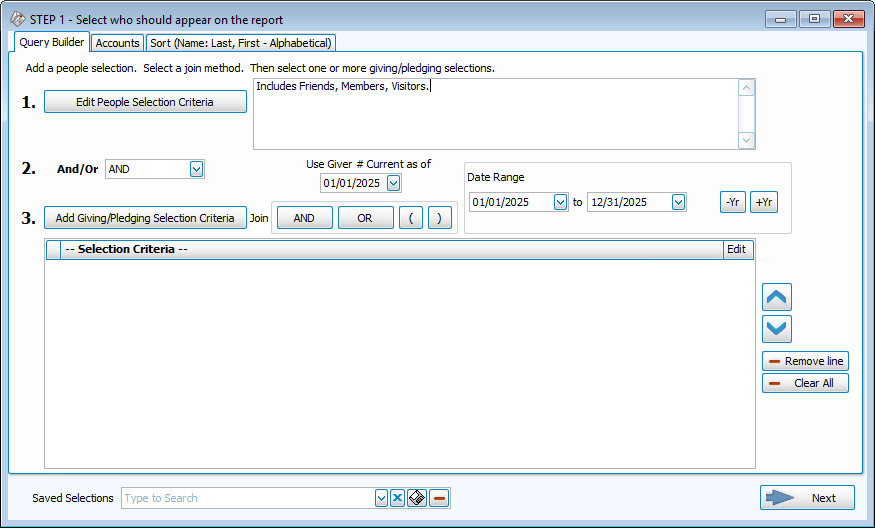
Navigate to Reports/Exports > Directories in the Membership module.
-
Use the Step 1: Selection Criteria screen to define the individuals or families to be included by clicking on Edit People Selection Criteria. In a Directory Layout, only individuals with the Include on Directory box checked in their Individual Record will show in the directory.
-
Click Next to continue.
Directory Layouts
-
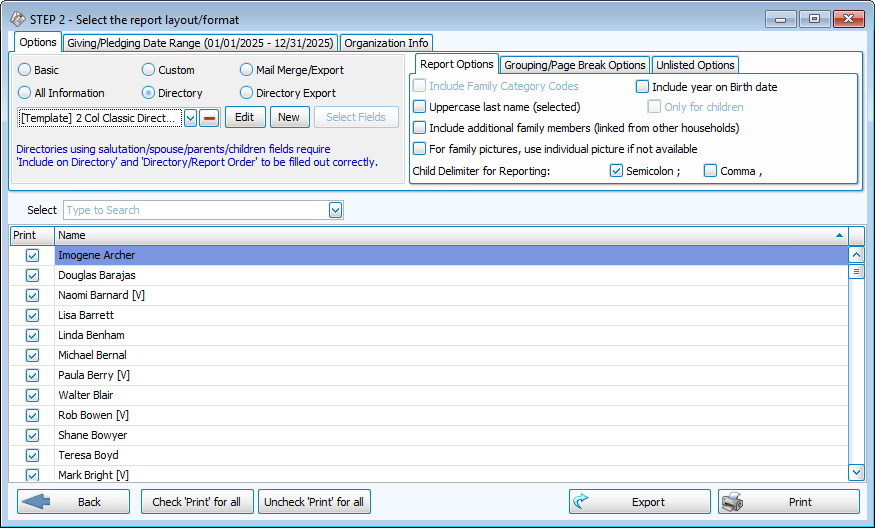
Select the Directory radio button in the upper left report types area.
-
Choose a [Template] or previously created layout from the dropdown menu.
-
Set report options, page breaks, and settings for unlisted contact information in the upper right tabs.
-
Click Print.
Customizing a Directory
Click the Edit button on a template or previously saved layout to open the Report Designer